Using FAFJ on your phone
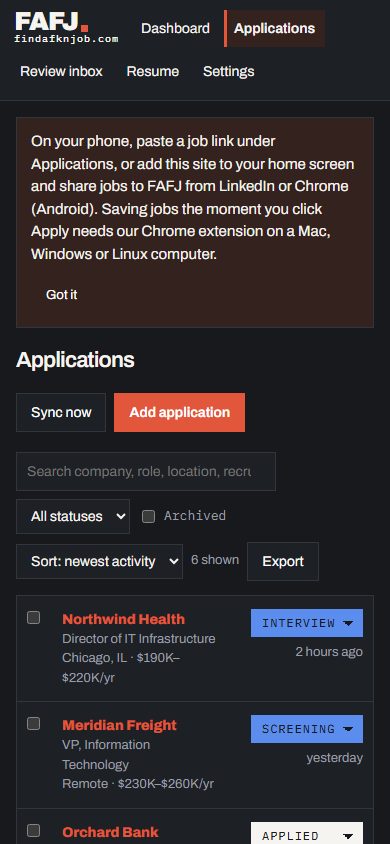
Save a job from your phone by pasting or sharing its link, add FAFJ to your home screen, and finish on a computer.
Paste a link and the job fills itself in
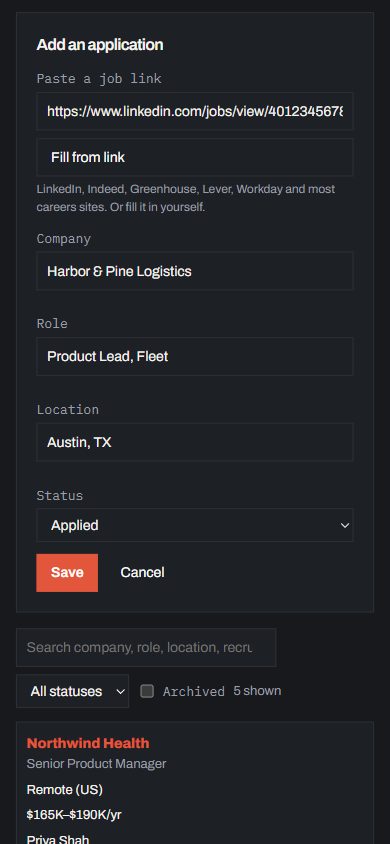
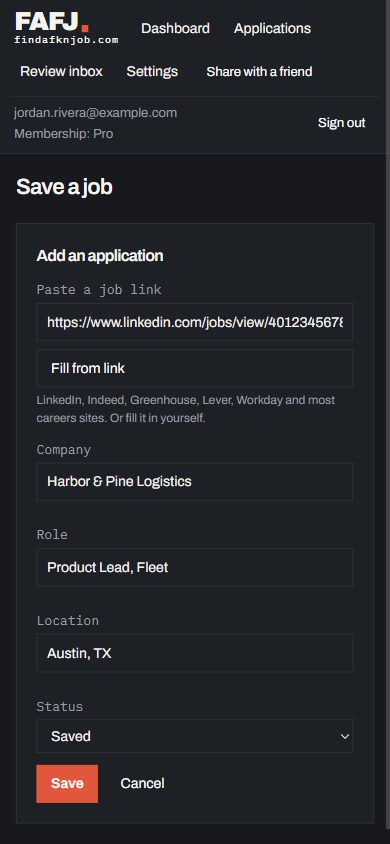
Found a job in the LinkedIn app or your phone’s browser? Copy its link, open Applications, tap Add application and paste it. We read the posting and fill in the company, role, location, pay and full description for you to check. That works best for links from LinkedIn, Greenhouse (including company career pages with a Greenhouse job on them), Lever, Ashby, Workday and Taleo.
Share a job to FAFJ
On Android, open findafknjob.com in Chrome and choose Add to Home screen (or Install app) from the menu. After that, FAFJ appears in the share menu: tap Share on any job and pick FAFJ to save it. On an iPhone, add the site to your home screen from Safari’s share menu for one-tap access, and paste links as above.
When a site hides the details
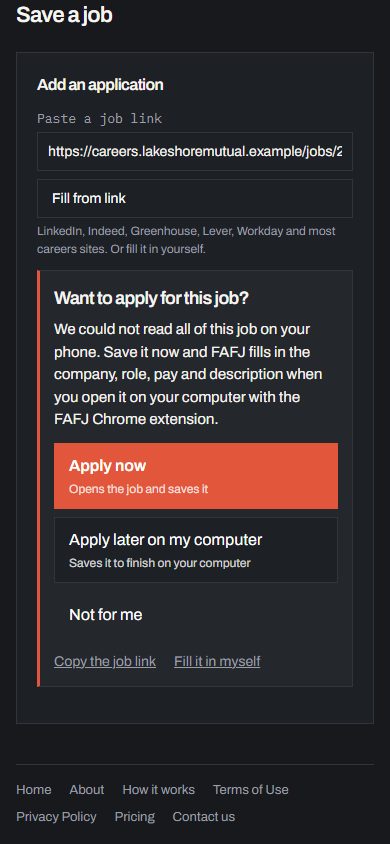
Some sites give us only the job title, or nothing but the link. Then FAFJ asks Want to apply for this job?Apply now opens the posting and saves the job by its link; Apply later on my computer saves it to finish there; Not for me leaves it. You can also Copy the job link or Fill it in myself. When you open the job on your computer with the Chrome extension, FAFJ fills in the role, company, description, location and pay. Sharing a job you already saved fills in what it lacks, too. If a link can’t be read in full, tap Copy the details: it copies the link, what was read and what was missing, the error, your device and the time, ready to paste into a message to us (or to Claude).
Helping someone else
Helping someone else? If you can edit their job search, sharing a job from your phone first asks Whose job search is this for? Pick My job search or theirs, and the job is saved and opened there. If the job is already there, it says so, and if it was applied to it says who and when (Kerry already applied on Sep 20), so nobody applies twice.