Using the Chrome extension
Connect the extension, save jobs as you browse, and have each job tracked the moment you click Apply.
How to apply to a job
On a computer, with the Chrome extension:
- Open the job on LinkedIn, Indeed or the company’s careers site. To keep it for later, click Save to findafknjob.com in the extension (see below).
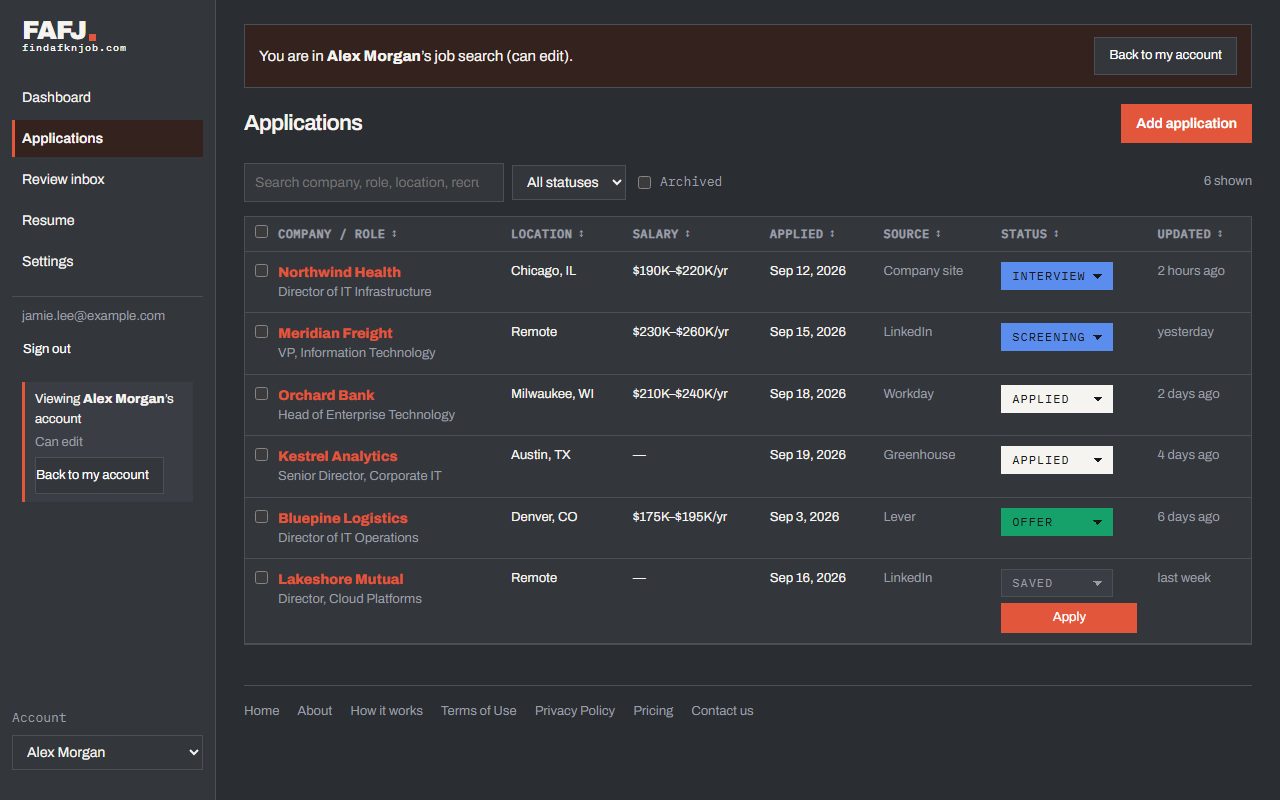
- Click the posting’s Apply button. The job goes on your board right then, with the full posting (see below).
- Fill in the company’s application form (or click Autofill this form in the extension, once you turn it on: see Autofill), check it, then click Submit yourself.
- The job moves to Applied with today’s date and the answers you gave. On Pro, replies from the company keep its status up to date.
On your phone:
- Save the job by pasting or sharing its link (see Using FAFJ on your phone). If the site won’t let us read all of it, FAFJ asks whether you want to apply now or later on your computer.
- Apply on the company’s site in your phone’s browser, then set the job’s status to Applied. Or open the job later on a computer with the extension: it fills in anything your phone could not get, like the description, location and pay, and tracks the application when you apply there.
Install and connect the Chrome extension
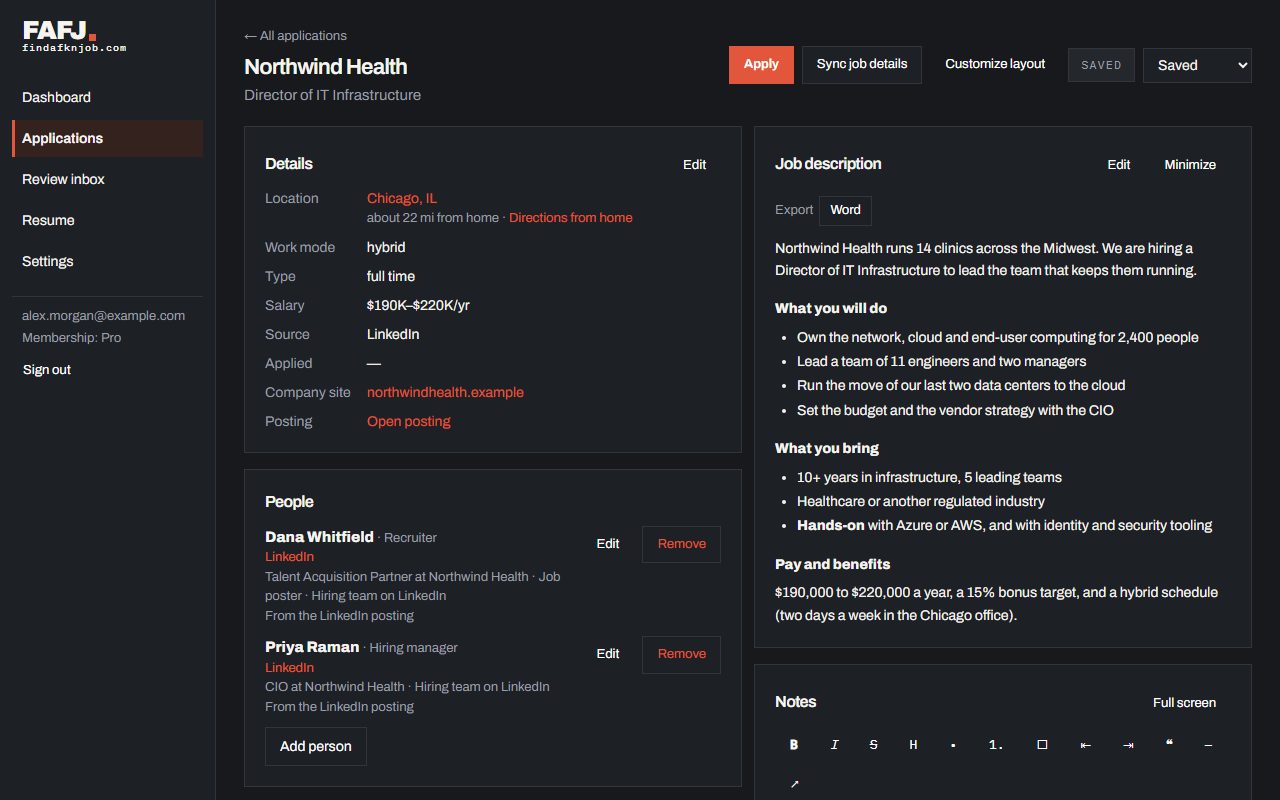
The extension saves and tracks the jobs you look at and apply to. Install it in Chrome on a Mac, Windows or Linux computer, click Connect in it, and approve the code it shows on this page.
Save a job as you browse
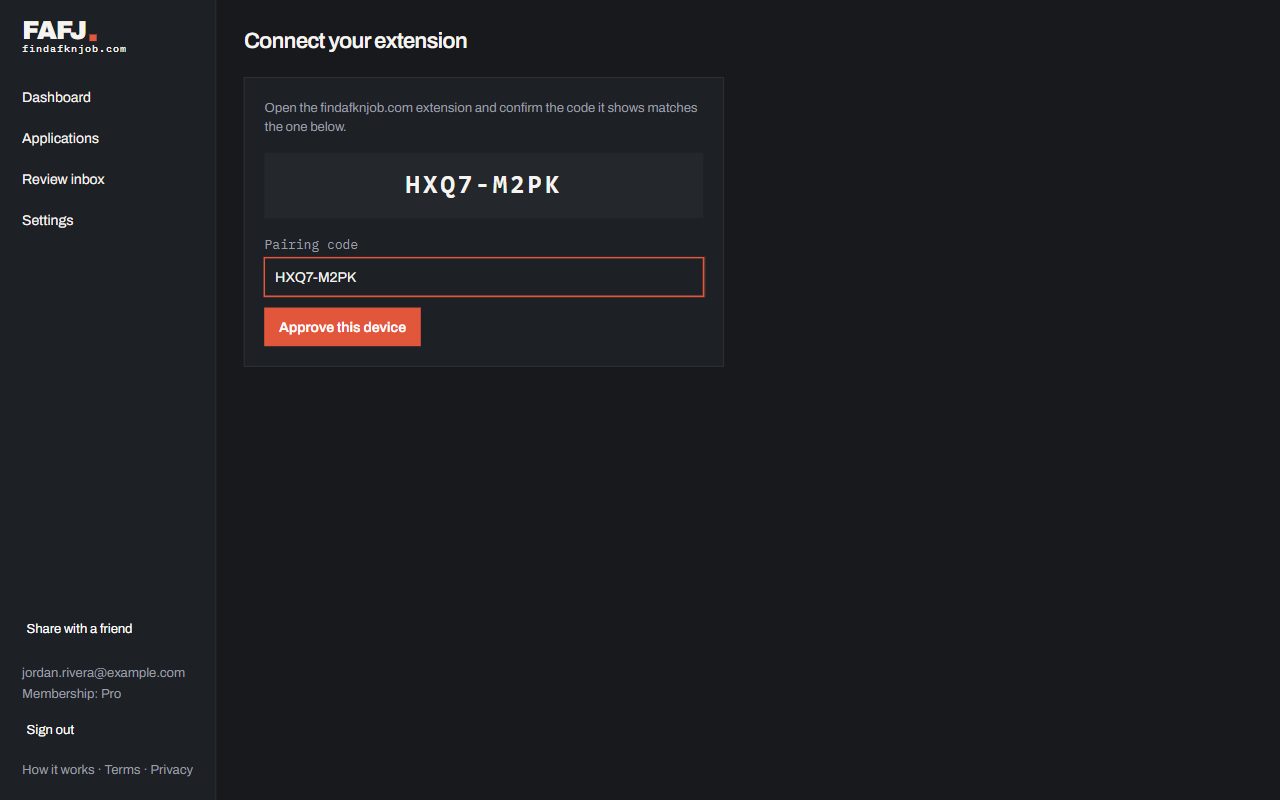
Open a job on LinkedIn, Indeed, Greenhouse, Lever, Workday, Ashby or a company’s careers site, and the extension reads the role, company, location, pay, full description and link. Click Save to findafknjob.com to keep it for later. It also tells you when you have applied to that company before.
Click Apply and it’s on your board
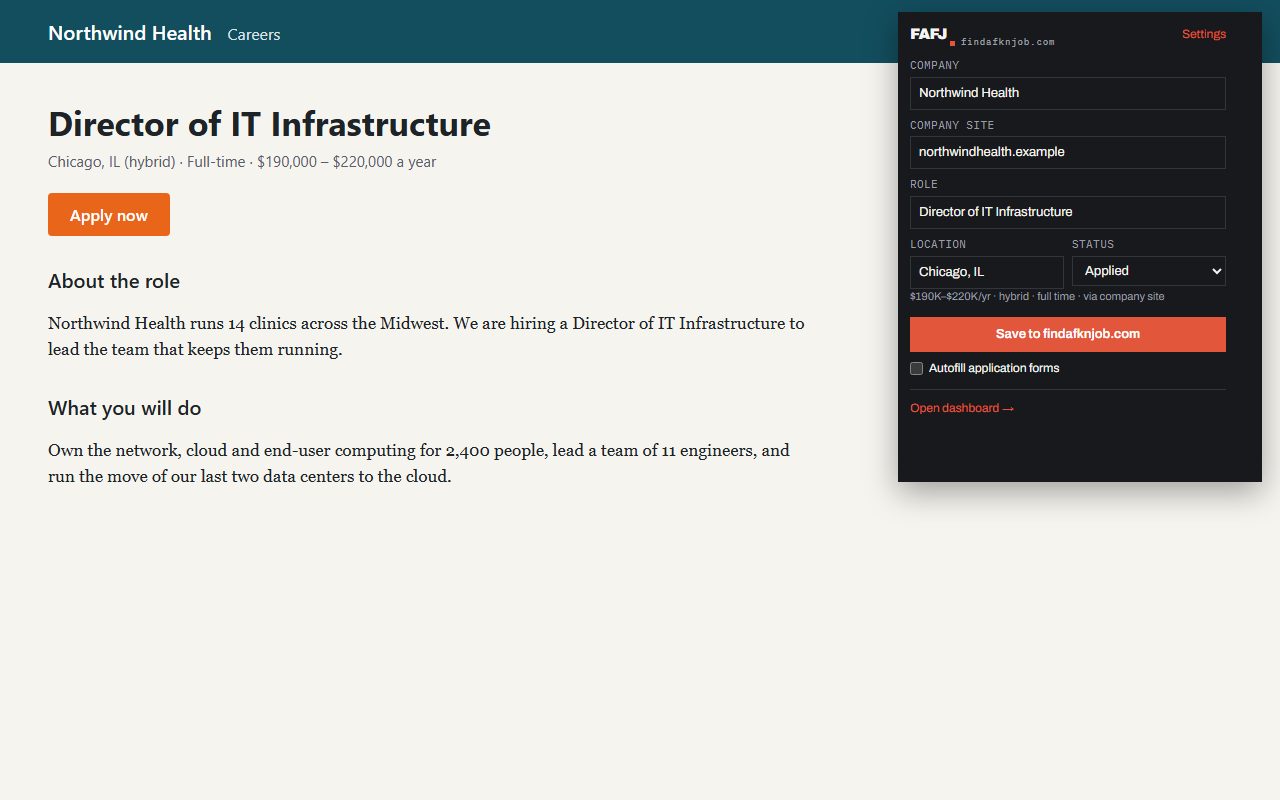
Click Apply on a job board or a company’s careers site and the job is saved right then, with everything the posting shows: company, role, location, pay, the full description and the hiring team, even when the application form shows none of it. Opening an application form saves the job too. When you submit the form, it moves to Applied, with the answers you gave. A status never moves backwards.
Applying for someone else
Helping someone with their job search? When they share it with you with Can edit, pick their name under Applying for in the Chrome extension, and the jobs you save and apply to go on their board. See Work in an account shared with you.